Image Editor (Shared)
Status: Implemented
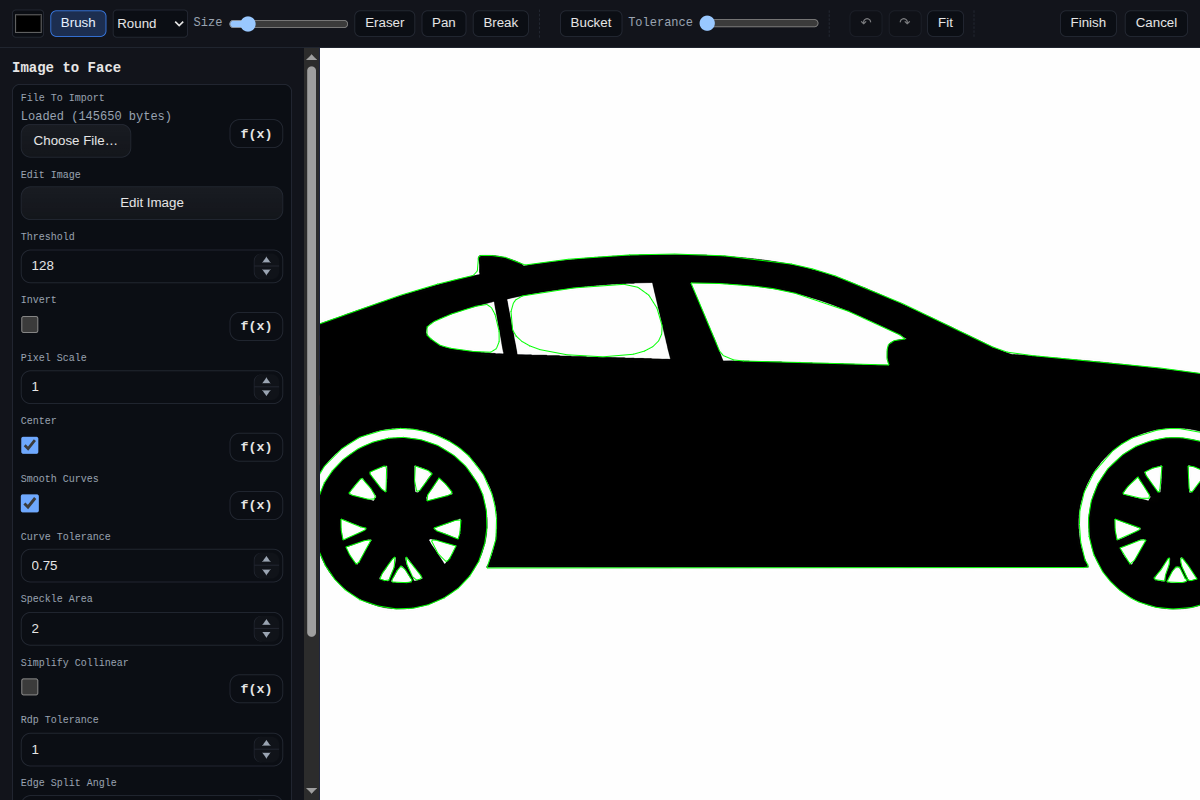
The in-app Image Editor is shared by Image to Face and Image Heightmap Solid. It is a full-screen raster editor with live preview updates and save/cancel handoff back to the feature dialog.
Where It Is Used
- Image to Face via
editImage - Image Heightmap Solid via
editImage
Open / Save Flow
- Open a feature dialog (
Image to FaceorImage Heightmap Solid). - Click
Edit Image. - Edit the bitmap in the full-screen editor.
- Click
Finishto write a PNG data URL back intofileToImport, orCancelto discard edits.
Tools
Brush(B) – paint with color + brush size.Eraser(E) – erase to transparency.Bucket(G) – flood fill with adjustable tolerance (0-255).Pan(button or holdSpace) – drag the view.Break– add/remove manual edge-break points on traced loops (mainly relevant forImage to Faceedge segmentation).
Brush shapes:
RoundSquareDiamond
View Controls
- Mouse wheel zooms at cursor.
Fitbutton (orF) resets view to fit the working canvas.- Default open view is 1:1 image pixel display.
- Bottom-right resize handle changes working canvas size (supports expanding/cropping while preserving existing edits).
Undo / Redo And Hotkeys
Undo:Ctrl/Cmd+ZRedo:Ctrl/Cmd+YorCtrl/Cmd+Shift+ZFinish:EnterCancel:Esc
Feature-Specific Notes
Image to Face: editor can include the parameter form in the sidebar and uses live traced-vector overlays + edge-break management (edgeBreakPoints,edgeSuppressedBreaks).Image Heightmap Solid: uses the same raster editing workflow to prepare heightmap imagery before height sampling.