Text to Face
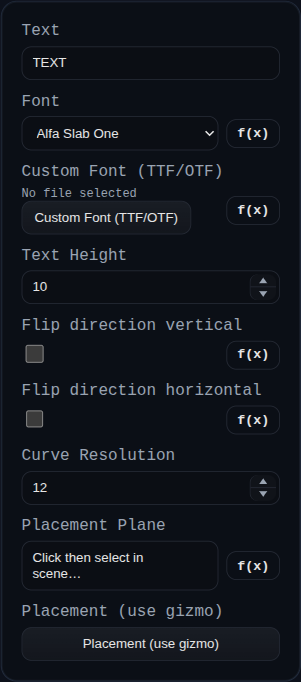
Text to Face converts a text string into a sketch-like face that can be used downstream (Extrude, Revolve, Sweep, Loft). It generates planar faces and edges from a font outline and places the result on a selected plane or face.
Workflow
- Add Text to Face from the feature list.
- Enter the text string.
- Choose a font (built-in or upload a custom TTF/OTF).
- Set the text height and curve resolution.
- Pick a placement plane or face.
- Use the transform gizmo to position/rotate the text.
- Finish and use the resulting sketch in other features (Extrude, Revolve, etc.).
Inputs
text— Text string to convert into a face.font— Built-in font selection (includes bundled Google Fonts + system fonts).fontFile— Optional custom font override (.ttfor.otf).textHeight— Height of the text in world units.flipDirectionVertical— Flip the text vertically within the sketch plane.flipDirectionHorizontal— Flip the text horizontally within the sketch plane.curveResolution— Curve tessellation density (segments per curve).placementPlane— Plane or face that defines the sketch plane.transform— Gizmo-based placement relative to the selected plane/face.
Output
- A
SKETCHgroup containing a triangulated face plus edge polylines. - The output behaves like other sketches: it can be consumed directly by Extrude/Revolve/Sweep/Loft.
Tips
- Lower
curveResolutionfor faster rebuilds; increase it for smoother curves. - Use the flip controls for mirrored labels or stamped text.
- Built-in Braille HC options include
Braille Grid HC,Braille Latin HC,Braille Pinboard HC, andBraille Pixel HC(font rendering only; no runtime character remapping code). - Use
fontFileif you need a different Braille convention or style. - The resolved font binary is saved into the feature's
persistentData.fontFile(same data-URL format used by the Custom Font upload field), so existing parts can still rebuild even if that font is later removed from the app catalog. - If a font fails to load, try a different file or remove exotic glyphs from the text string.